Cloud Storage

Having access to your documents on multiple devices makes life easier. Storing and working with documents in iCloud is easy in iA Writer for iPad.
Enabling iCloud
iA Writer for iPadOS includes native integration for iCloud.
If iCloud Drive is enabled on your iPad, iA Writer will automatically use this as the default storage location, giving you the ease and security you've come to expect from iCloud.
If you are not already using iCloud or need to enable iA Writer for iCloud Drive, please follow these steps:
- Launch iOS Settings
- Go to iOS Settings → iCloud → Saved to iCloud (See All) → iCloud Drive
- Enable iCloud drive (toggle switch to ON)
- Go to Apps Syncing to iCloud Drive
- Enable iA Writer (toggle switch to ON)

Dropbox
As of May, 2024 Dropbox has updated their app to implement a fully-featured iPadOS Files integration. Provided you're running the latest available version of the Dropbox app, you should be able to add Dropbox folders in Writer.
Here's how:
- Navigate to top level of the Library
- Select Edit
- Select Add Location...
- Navigate to desired Dropbox folder
- Click Open
Here’s a video demonstrating how to add Dropbox folders on iOS—the process is nearly identical on iPadOS.
Other Cloud Providers
iA Writer for iOS supports adding Locations to the Library provided the full folder can be accessed via the iOS Files API. Despite Apple's best intentions, many major file storage providers (FSP) still do not support this functionality (as of May 2024).
Using the Open... function in the Library, you can quickly access and work on individual documents.
If you do not see your file storage provider's folder in the popup Files window, please ensure it is enabled directly in the Files app.
 Library
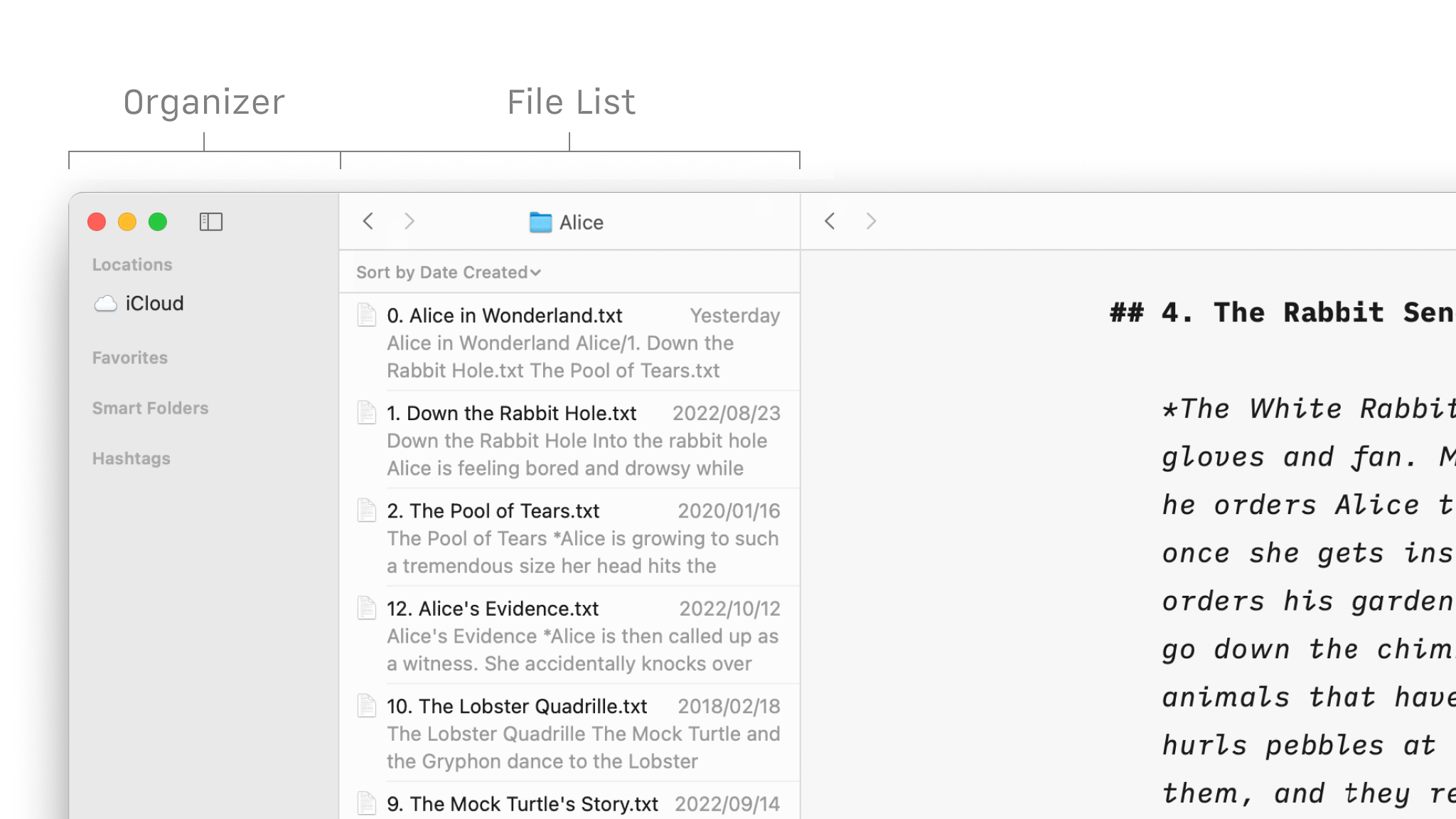
Organize Your Files
Folders, favourites, hashtags and more, discover all the ways to organize your documents in Writer.
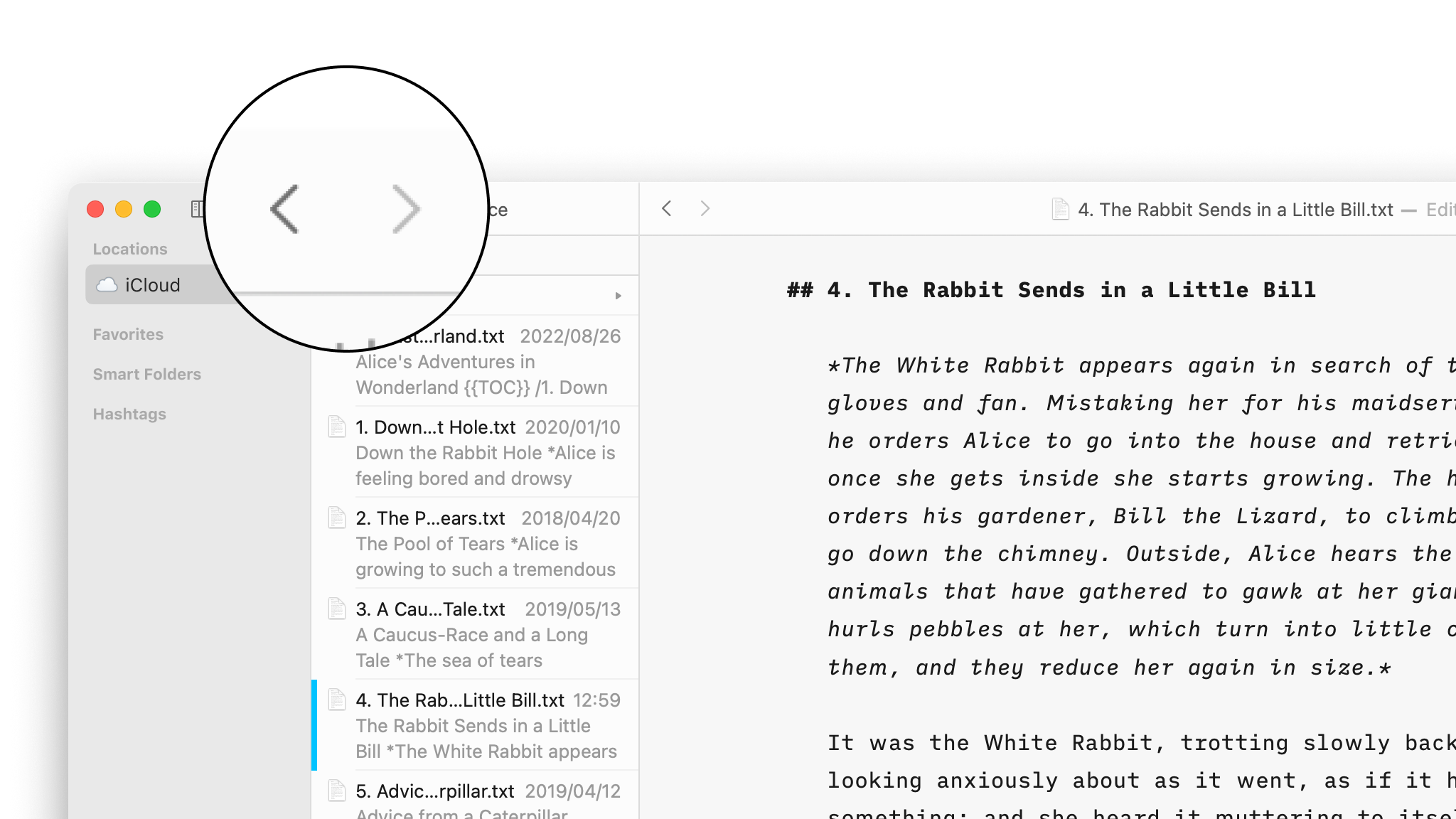
Navigate Your Files
Create, search and navigate through your documents in the Library.
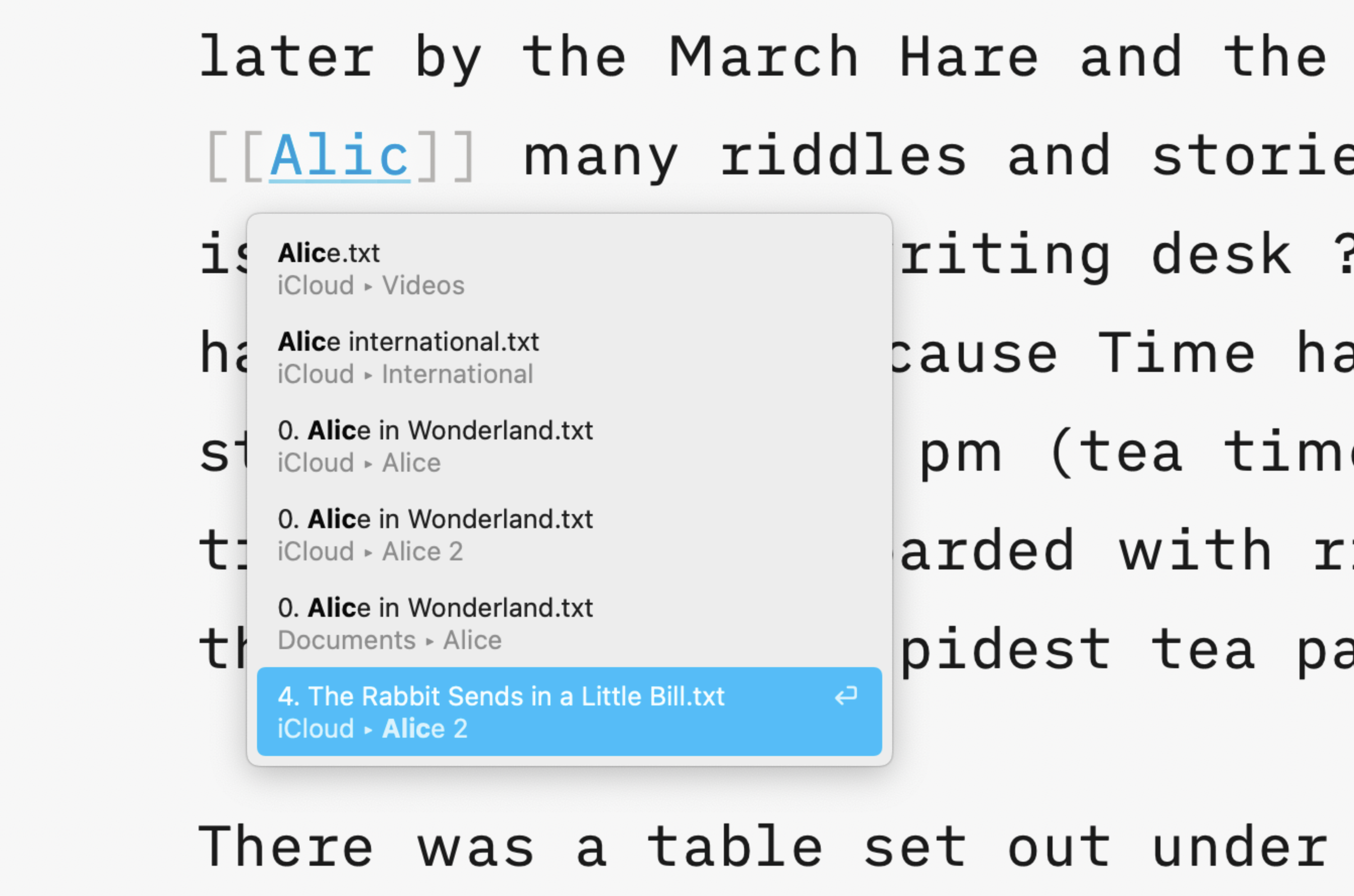
Wikilinks
Connect, browse, and rediscover your writing.

Content Blocks
Include images, comma separated tables, text files and code as blocks of content in your documents.
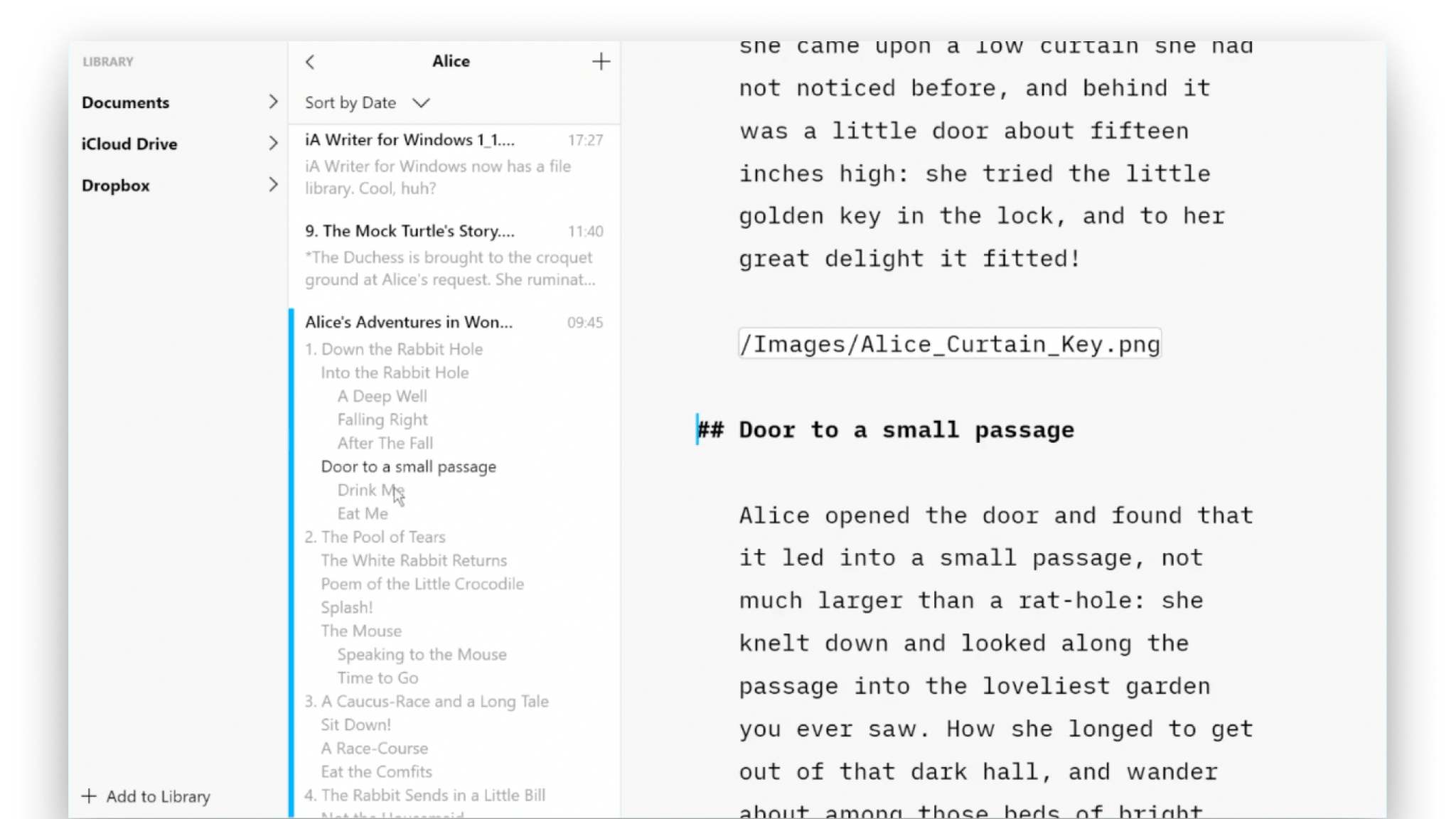
Outline
Writer for Windows comes with two powerful features for working with long or complex documents.