Content Blocks

On iPad, effortlessly insert images, text files, code, or CSV tables into your documents with Content Blocks.
Besides the integration of elements into your file this feature also offers an excellent document management solution alongside the Table of Content or Library options like Favourite, Smart Folders, or Hashtags.
Among all the use cases, Content Blocks are particularly popular for writers who need to compile various chapters of their book into a unified document.

Origins of Content Blocks
John Gruber, one the inventors of the Markdown markup language, remarked that image syntax was his biggest mistake with Markdown, and mentioned an alternative:
My best idea for good Markdown img syntax would be to just paste in a URL ending in .jpg/.png/.gif etc.
In our search of support for file transclusion, we landed on a syntax for what we call, Content Blocks.
The Content Blocks feature was added to Writer a few years ago, if you want to know more about our journey with this, feel free to check our blog post from that time: iA Writer 4.
Adding Content Blocks
You have two ways to embed files in your document as Content Blocks. In both cases, the same principles should be followed:
- the Content Block must be at the start of an empty line
- embedded files should be referenced in iA Writer's Library
- captions in quotes or parentheses can be added (this will be ignored with .txt files)
- Content Blocks are not currently processed in the "From Other Apps"
1. From the Lightning Menu
Tap the Add Content Block button in the Lightning menu to embed a file from your library in the current document.

A small pop window will appear with a selection of files, click on the targeted one.
2. Typing Path
You can manually type the path of the file to embed in your target document. Be sure to respect the proper syntax, as below:
Section.txt "Section"
Balance Sheet.csv 'Finances'
images/Structure.jpg (Data Flow)
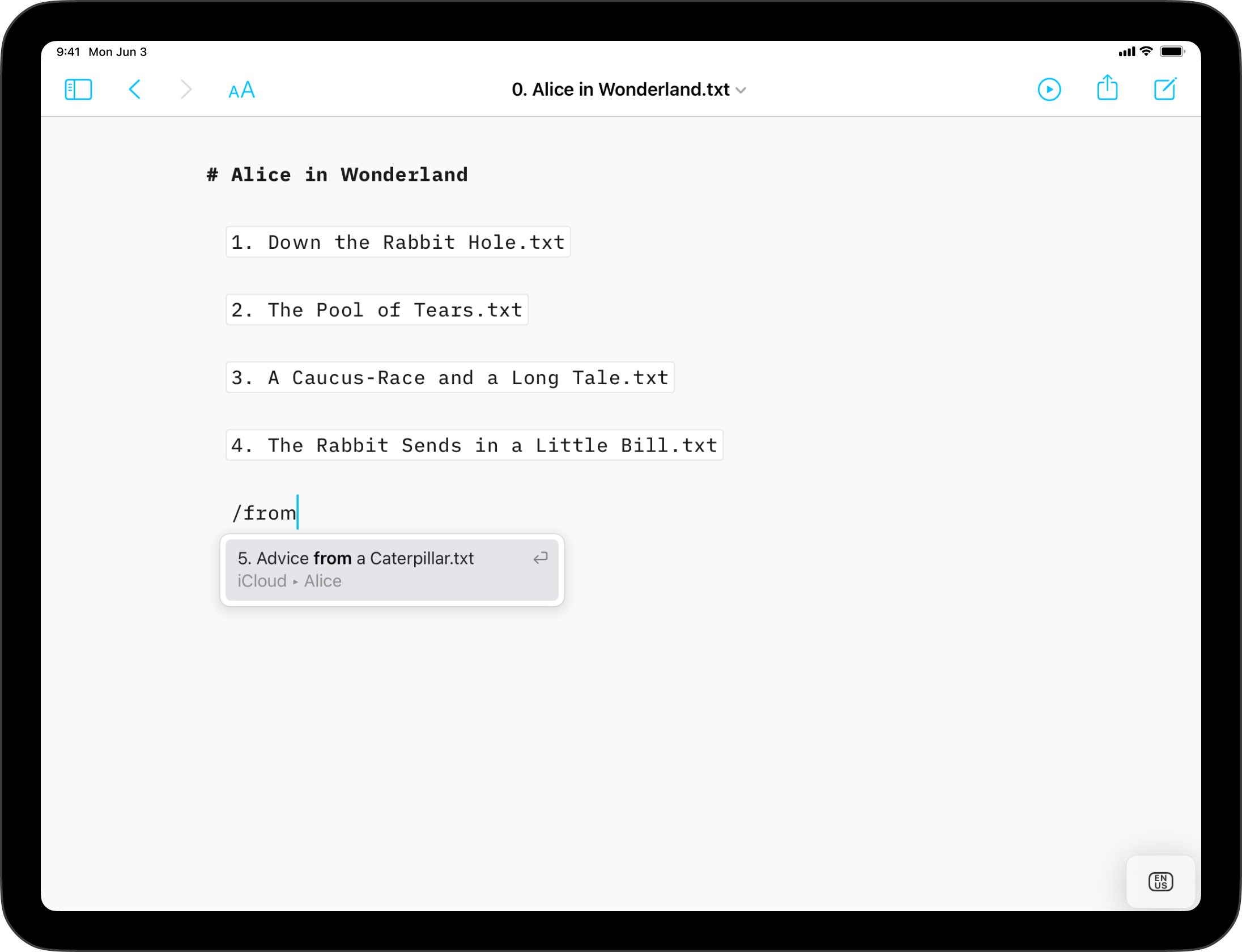
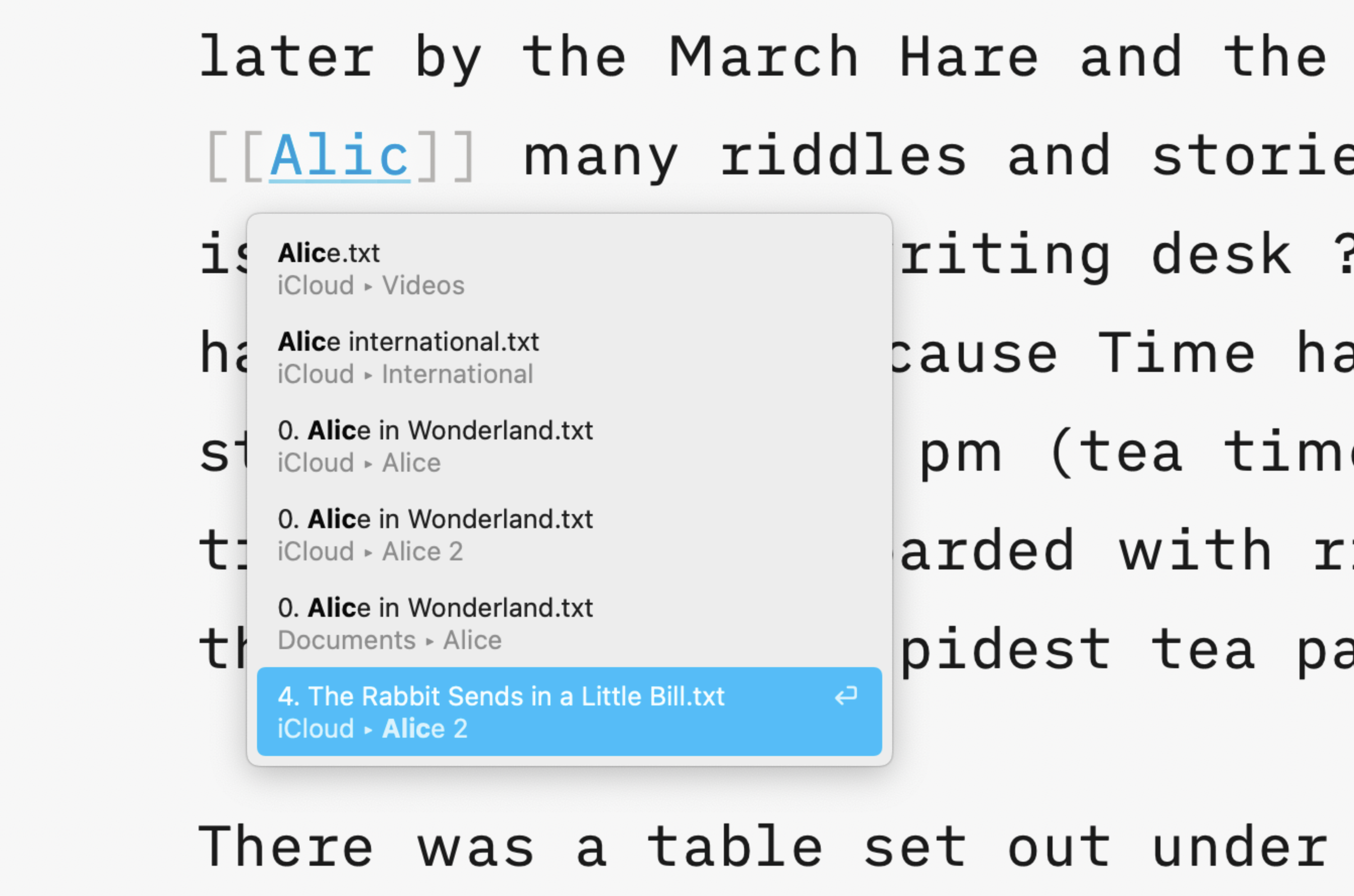
💡 Autocomplete will help find and add Content Blocks for you. To trigger autocomplete:
- type a slash
/ - type a few letters of the file you'd like to add
- a pop window will appear with a selection of corresponding files, click on the targeted one
These embedded files are rendered in the Preview and will be included in documents exported to HTML, PDF, Markdown and Microsoft Word.
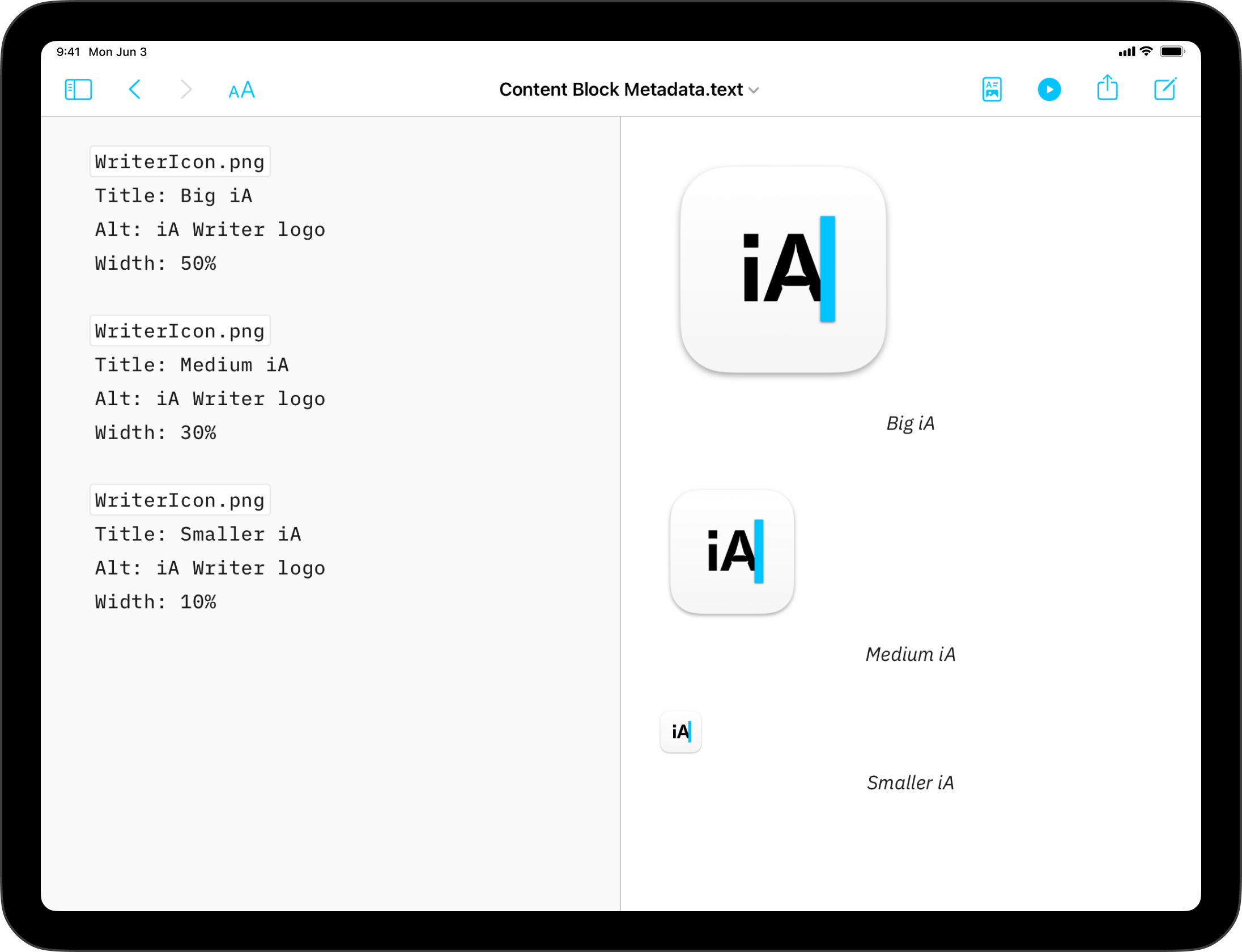
Content Blocks Metadata
You can add metadata to your content blocks, which is especially useful for images if you want to set a custom width or add alt text. Learn more about using Metadata.
 Library
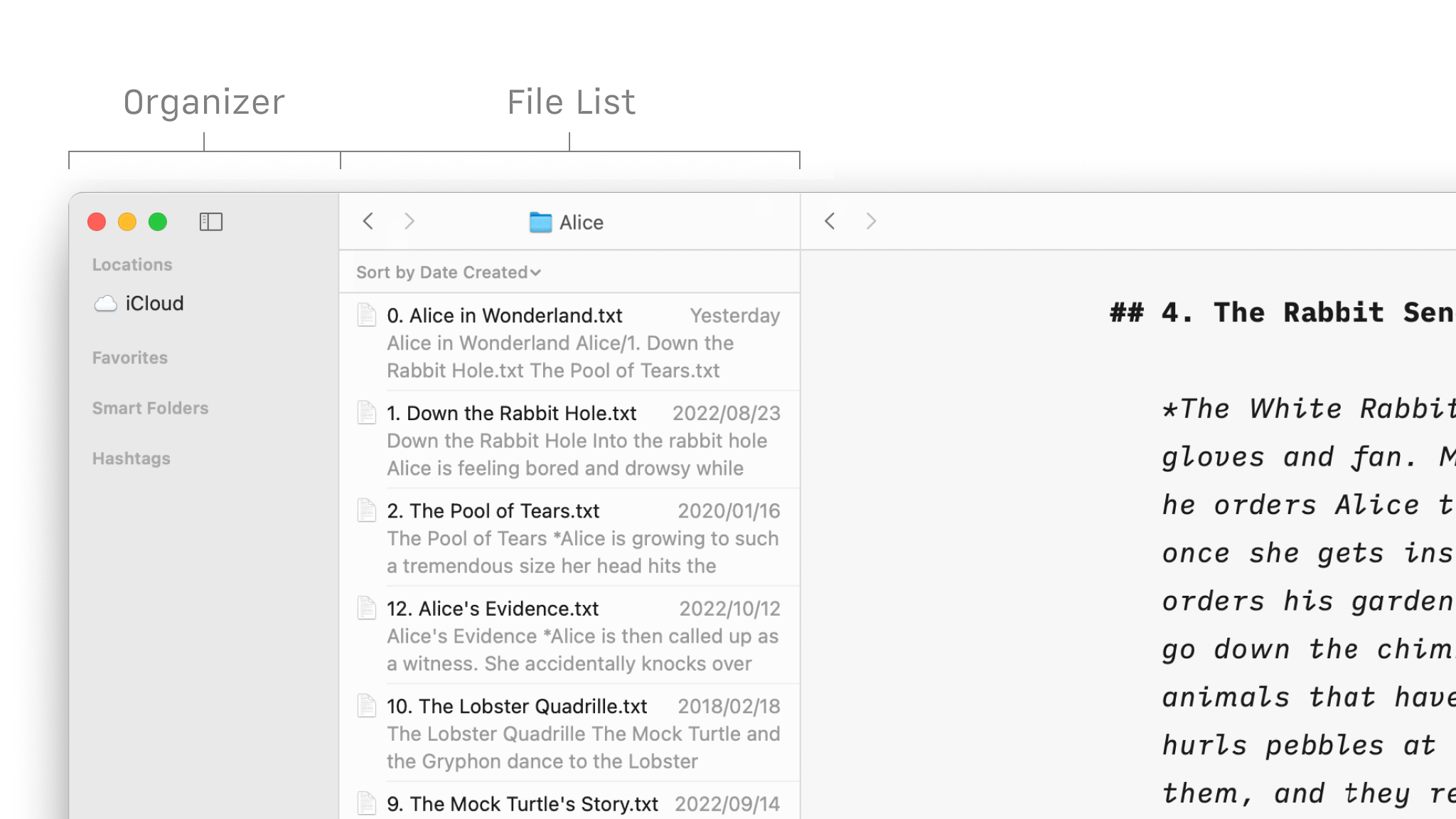
Organize Your Files
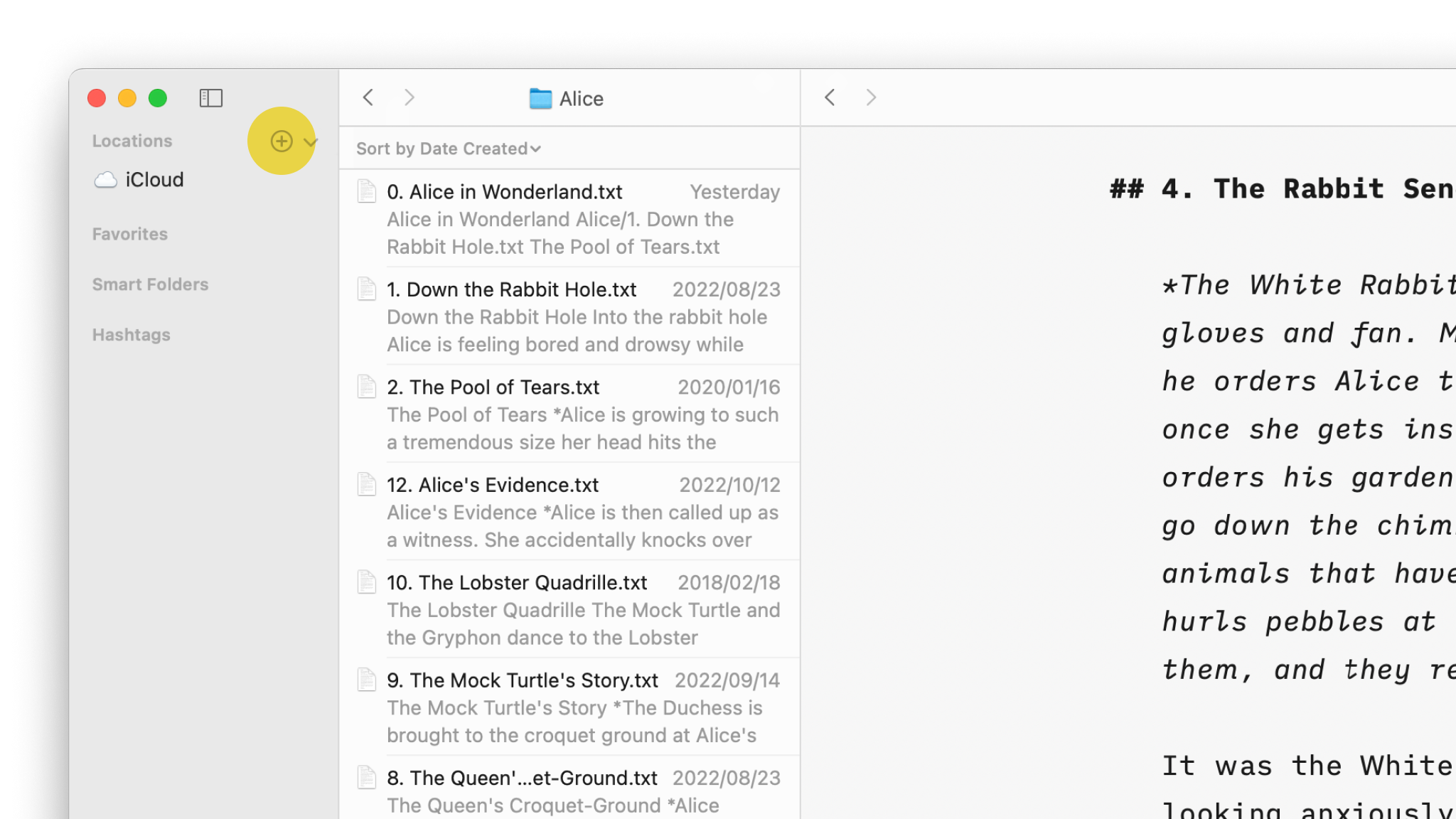
Folders, favourites, hashtags and more, discover all the ways to organize your documents in Writer.
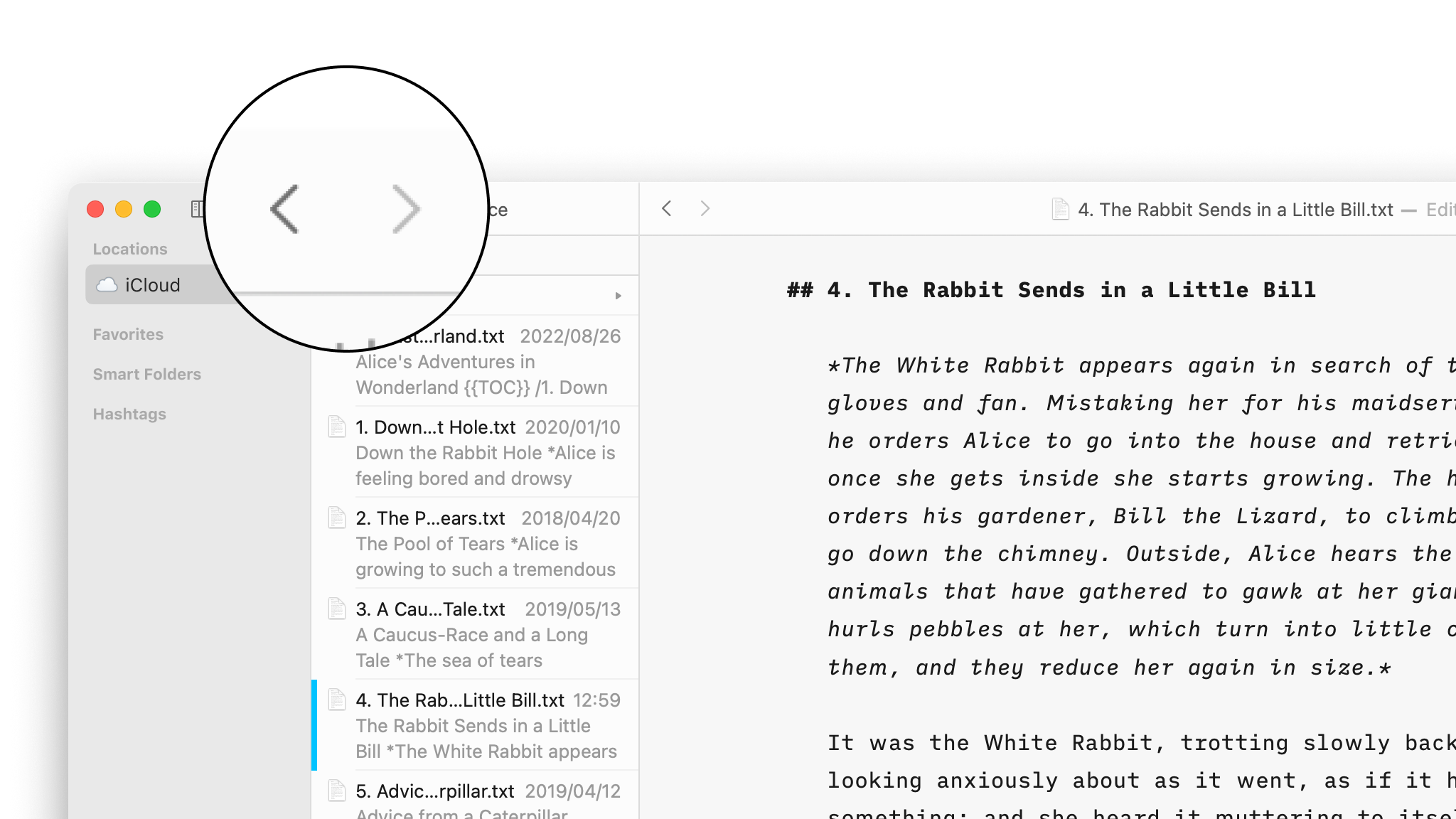
Navigate Your Files
Create, search and navigate through your documents in the Library.
Wikilinks
Connect, browse, and rediscover your writing.
Cloud Storage
Having access to your documents on multiple devices makes life easier.
Outline
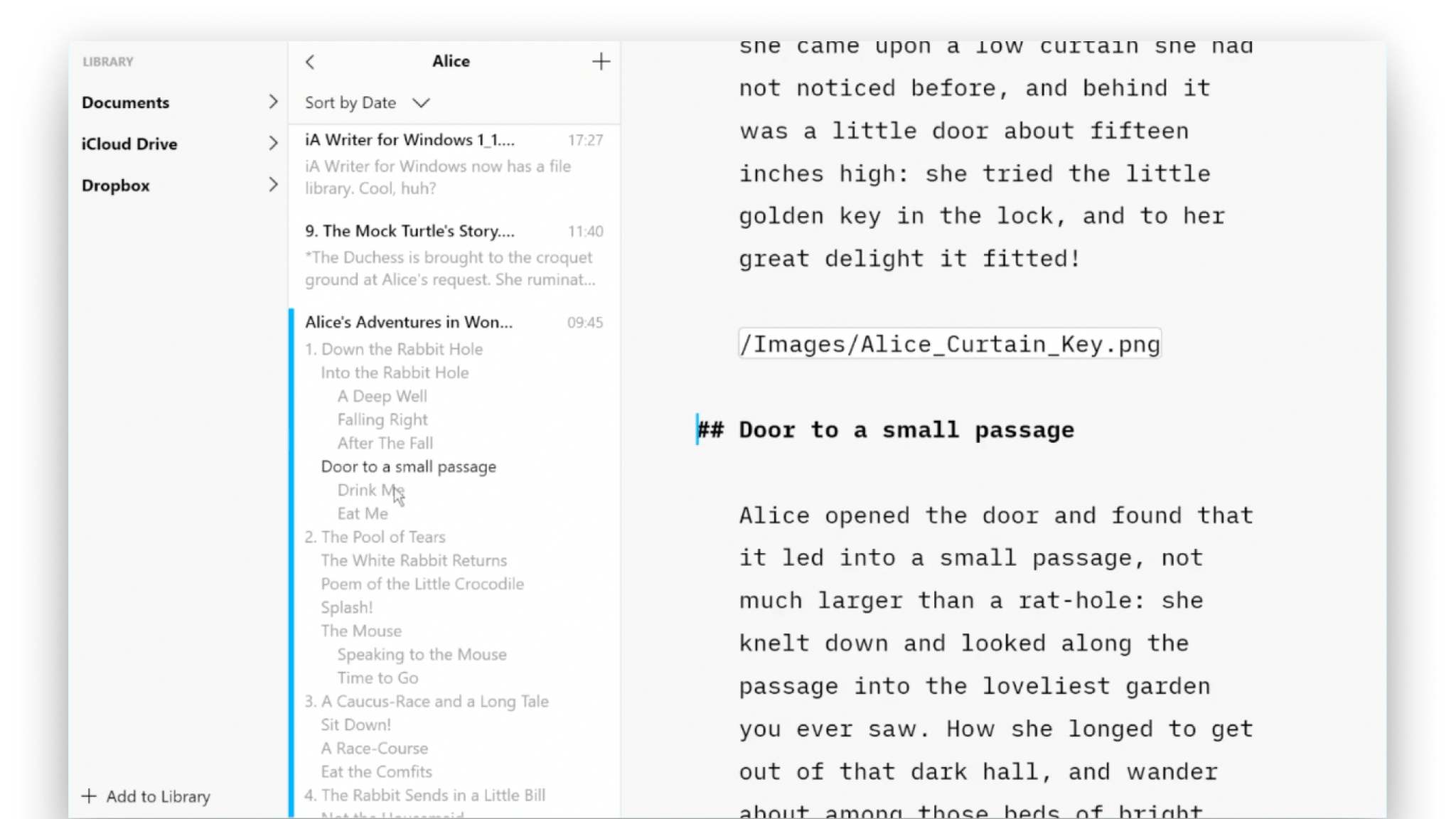
Writer for Windows comes with two powerful features for working with long or complex documents.