Modify the Preview

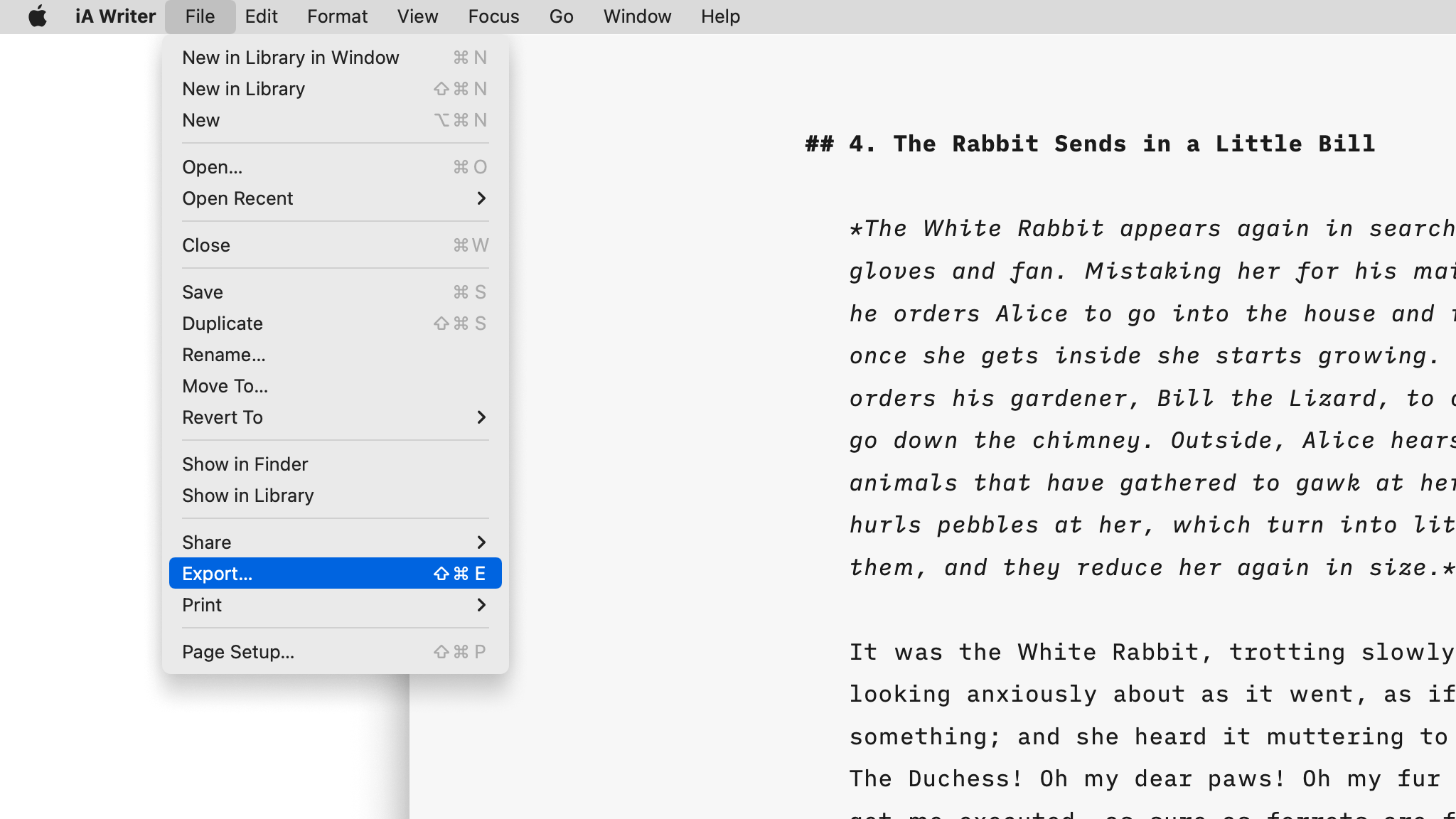
In Writer for iPad, you can utilize Preview to visualize how your document will appear when exported or printed.
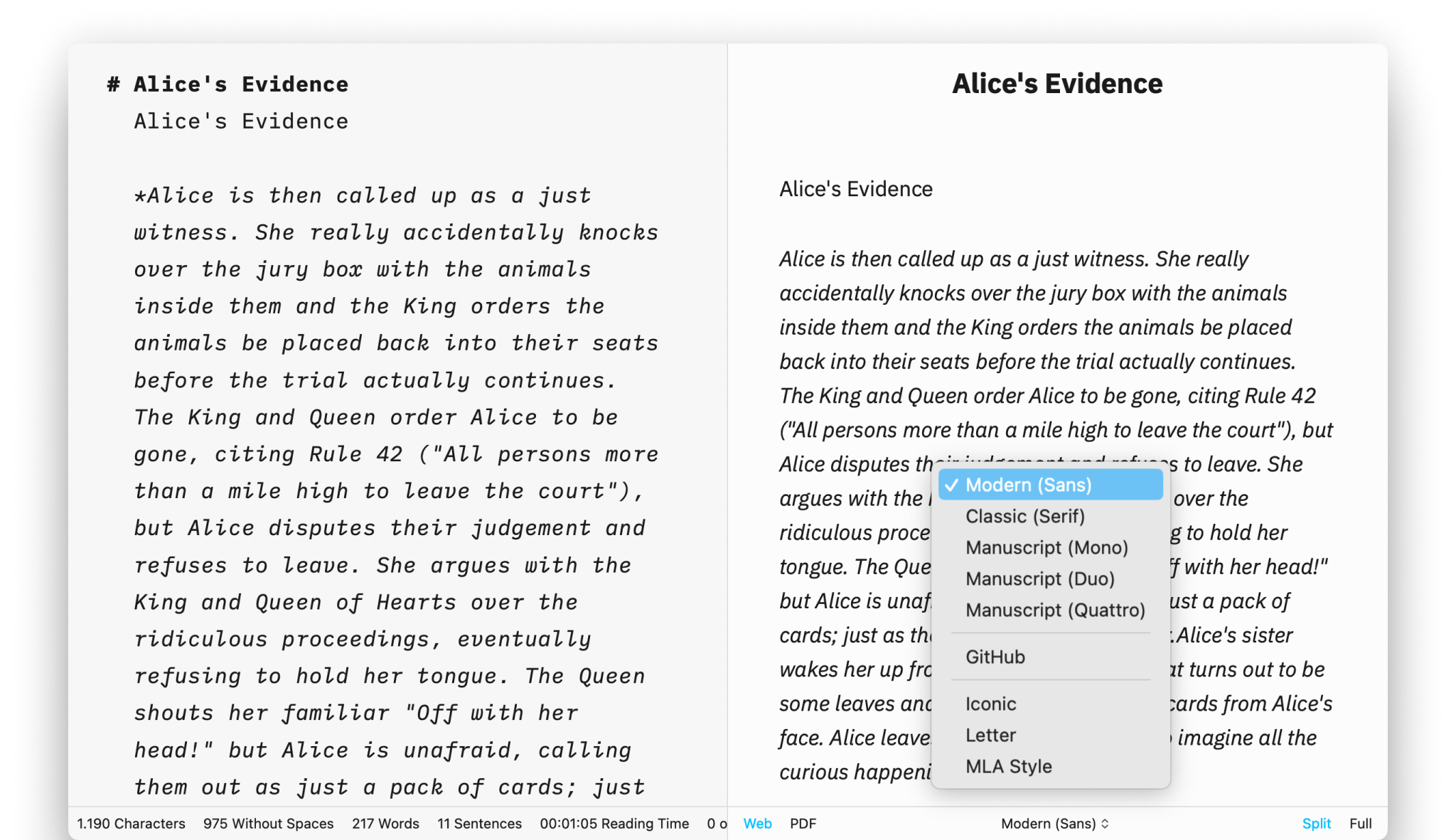
This feature allows you to view the rendering in various templates. From Preview, you have the options to adjust the fonts, layout, and background color.
You can open Preview from:
- the top-right arrow ▶️ on the Toolbar
- the shortcut ⌘R


Full-screen or Half-screen
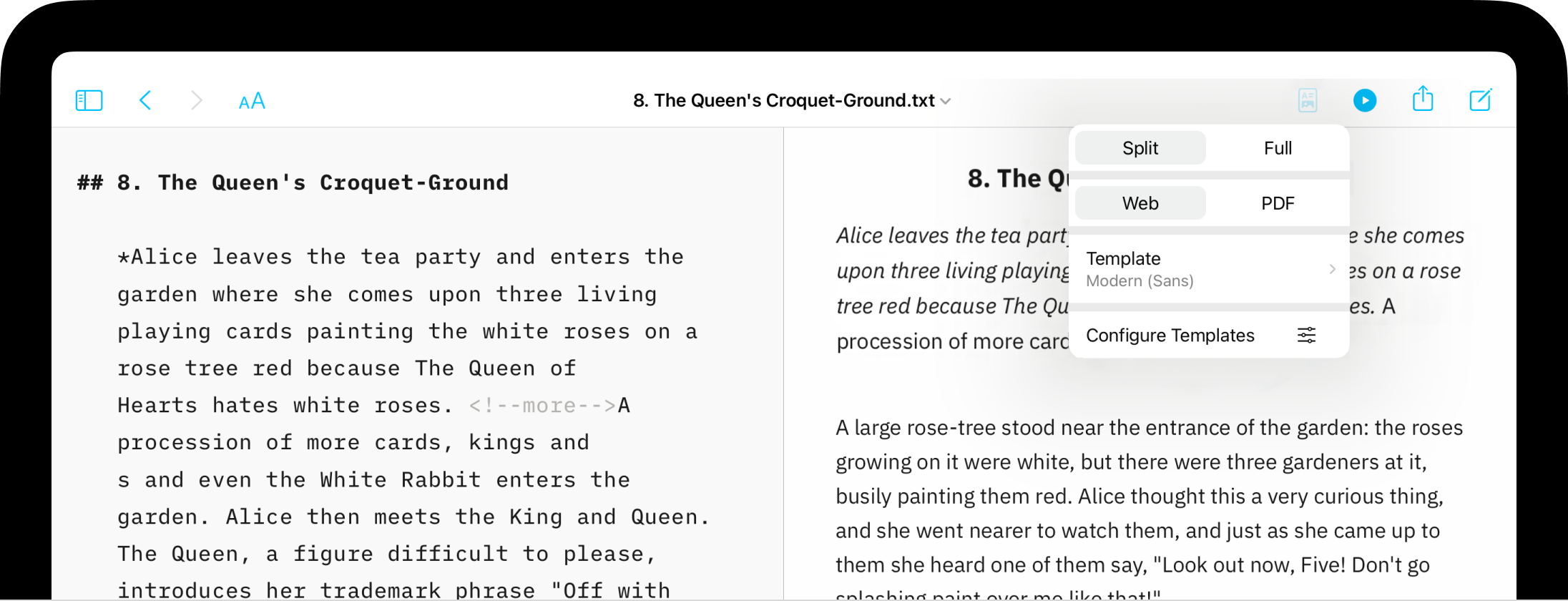
Preview can appear as half of the screen side by side with the Editor or in full screen. At full width, you can hide the Editor completely for an ideal reading environment, while half width is often used by writers who want to keep track of the formatting as they go.
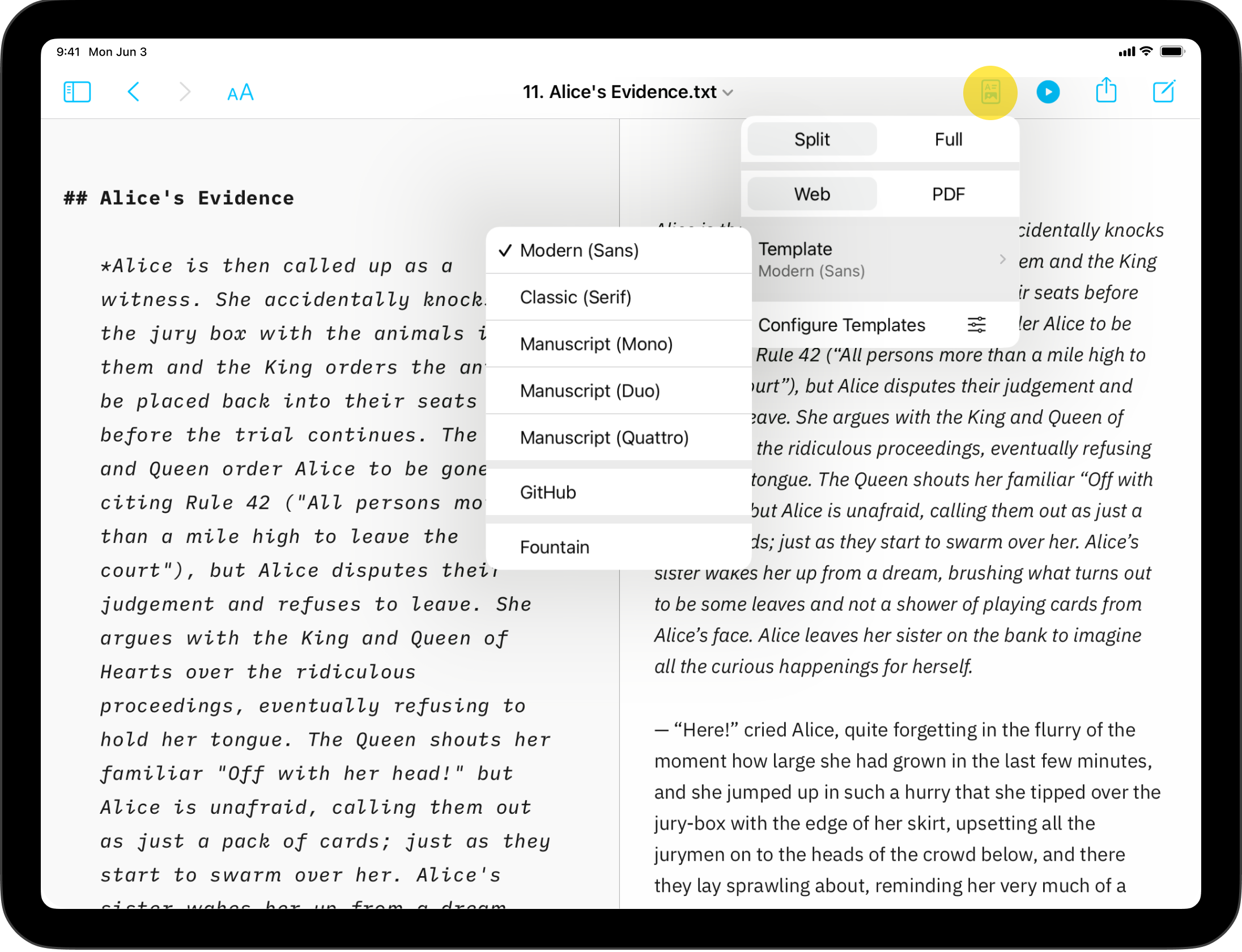
You can select between Split and Full Preview via the Toolbar with the "template" button.
Web & PDF Modes
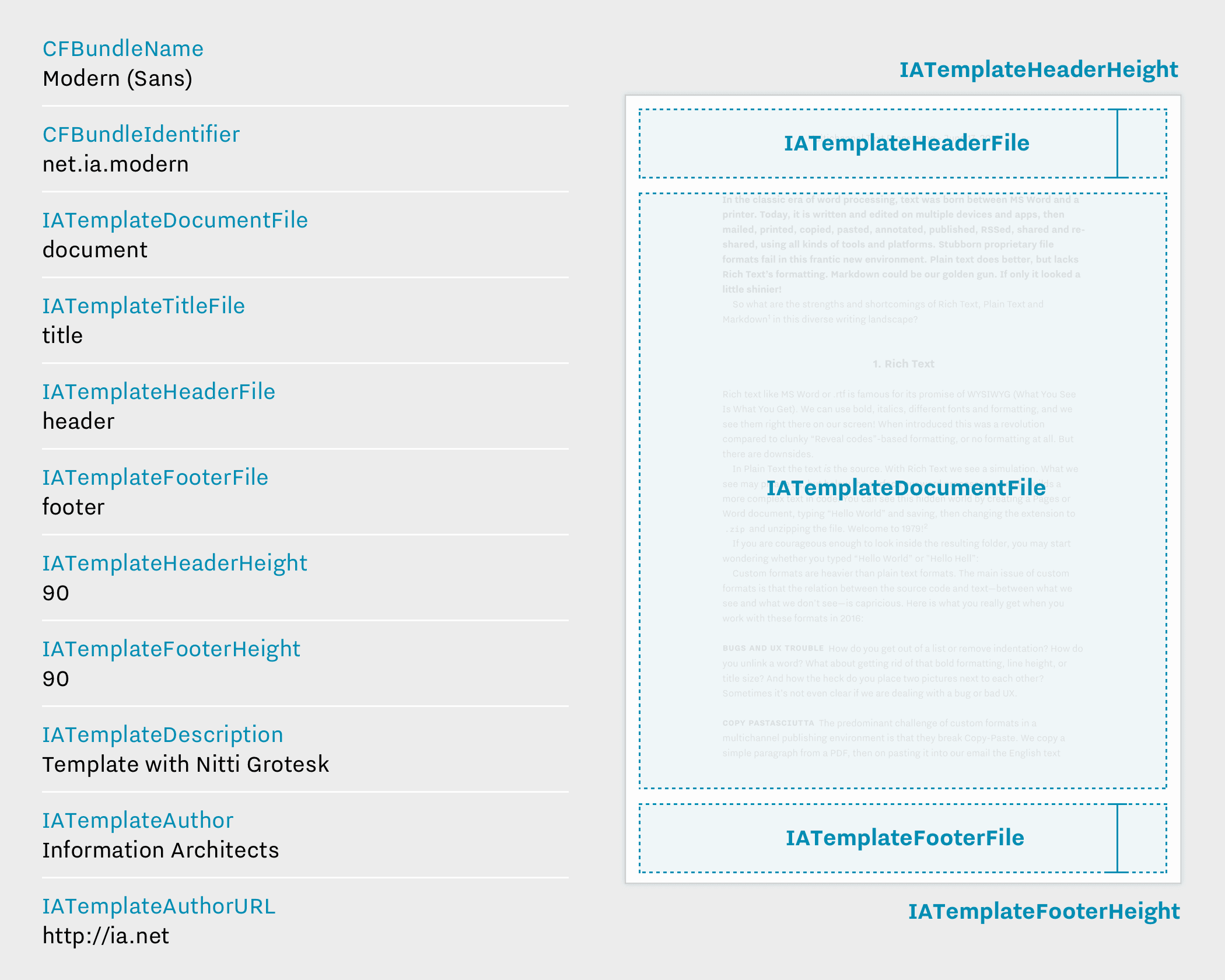
You can choose between Web mode or PDF mode. You have more formatting options available in PDF mode via Preferences → Templates.

In the Web mode, you can invert the colors to mark the difference between the Editor and Preview.
If the Editor is in light mode, Preview will appear in dark mode and vice versa.

Fonts & Layout
You can modify the font and layout of the document in the Preview thanks to the templates via the Toolbar (via the template button)
Preview determines what Export will look like. In the case of PDF, the currently selected typography in the Preview will be used.
 Preview