Videos

Like images, videos help tell a story. Local videos, videos from the web or from YouTube are just a tap away in Presenter.
Adding Videos
Presenter supports multiple video formats:
| Format | Extension |
|---|---|
| M4V | .m4v |
| Moving Picture Expert Group 4 | .mp4 |
| Quicktime | .mov |
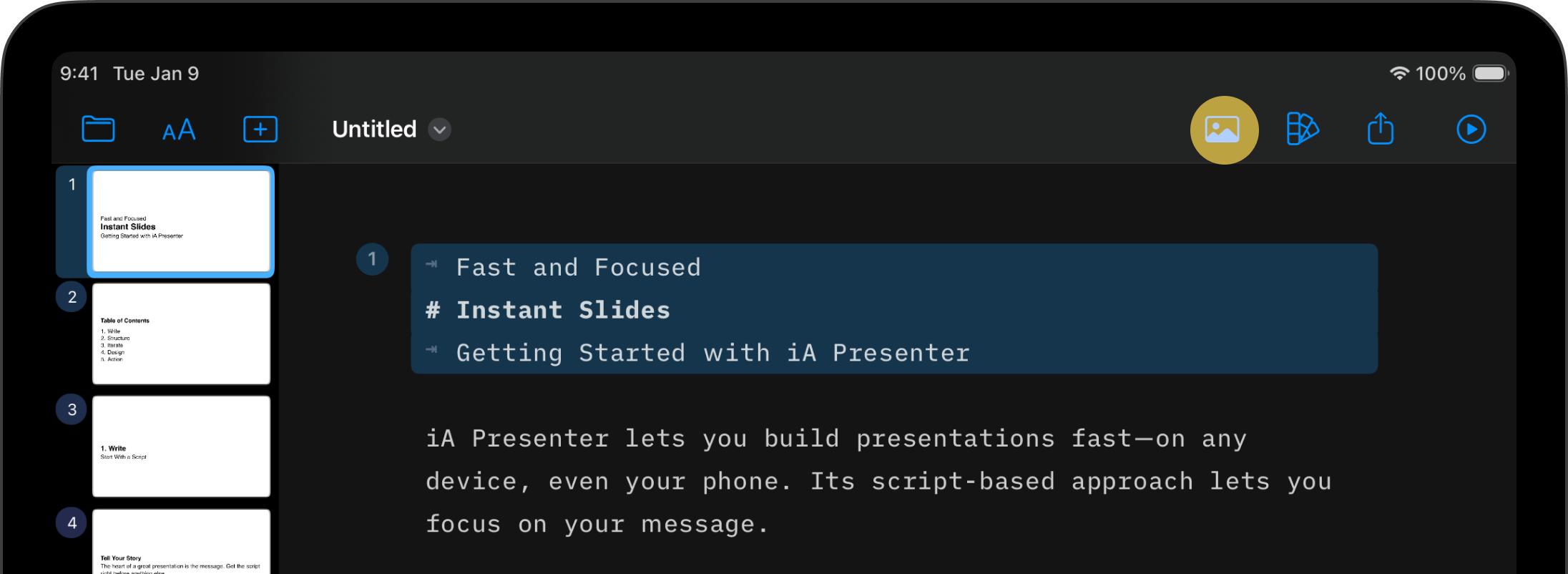
With Presenter for iOS you can add both local videos, or link directly to videos on the Internet. Simply click on the image icon on the top-right of the toolbar to access the Media Menu

Using Syntax or the Media Manager
Presenter supports Markdown syntax for videos, which you enter like this:

However, an easier way is to use Content Blocks Syntax, where you add the image’s path or URL. Open the Media menu, head to Add Media, then select your preferred option (Library, Files, or YouTube). Or, tap on a video that’s already in the Media Manager.
Finally, you can drag-and-drop a video or copy-paste a URL directly into Presenter. For example:
/assets/video-name.png
https://source.net/video-name.mov
An .iapresenter file is a .zip that includes your Markdown presentation file and all your assets. There’s no need to store videos separately from your presentation. You can manage videos from the Media menu.
Presenter uses two virtual folders for its videos:
assetsfor graphics you add to a presentation, e.g./assets/video-name.movthemefor reference graphics that come bundled with a theme, e.g./Theme/video.mov
Use the asset folders when working with graphics (images and videos) in your presentation. You’ll use the theme folder to change graphics in layout themes.
The Media Menu
You’ll find the Media button on the bottom-right of the toolbar. From the Media menu you can:
- View a list of all your assets
- Delete videos (swipe from right to left on the video)
- Rename videos or get a preview (swipe from left to right on the video)
- Add YouTube video links
💡 To quickly add videos from YouTube, copy the URL from your browser, click the Add YouTube Video button in the Media Manager tab, and paste.
Video Settings
From the main menu, click iA Presenter, select Settings, and open the Presentation tab to Show or hide video controls.

 Visuals
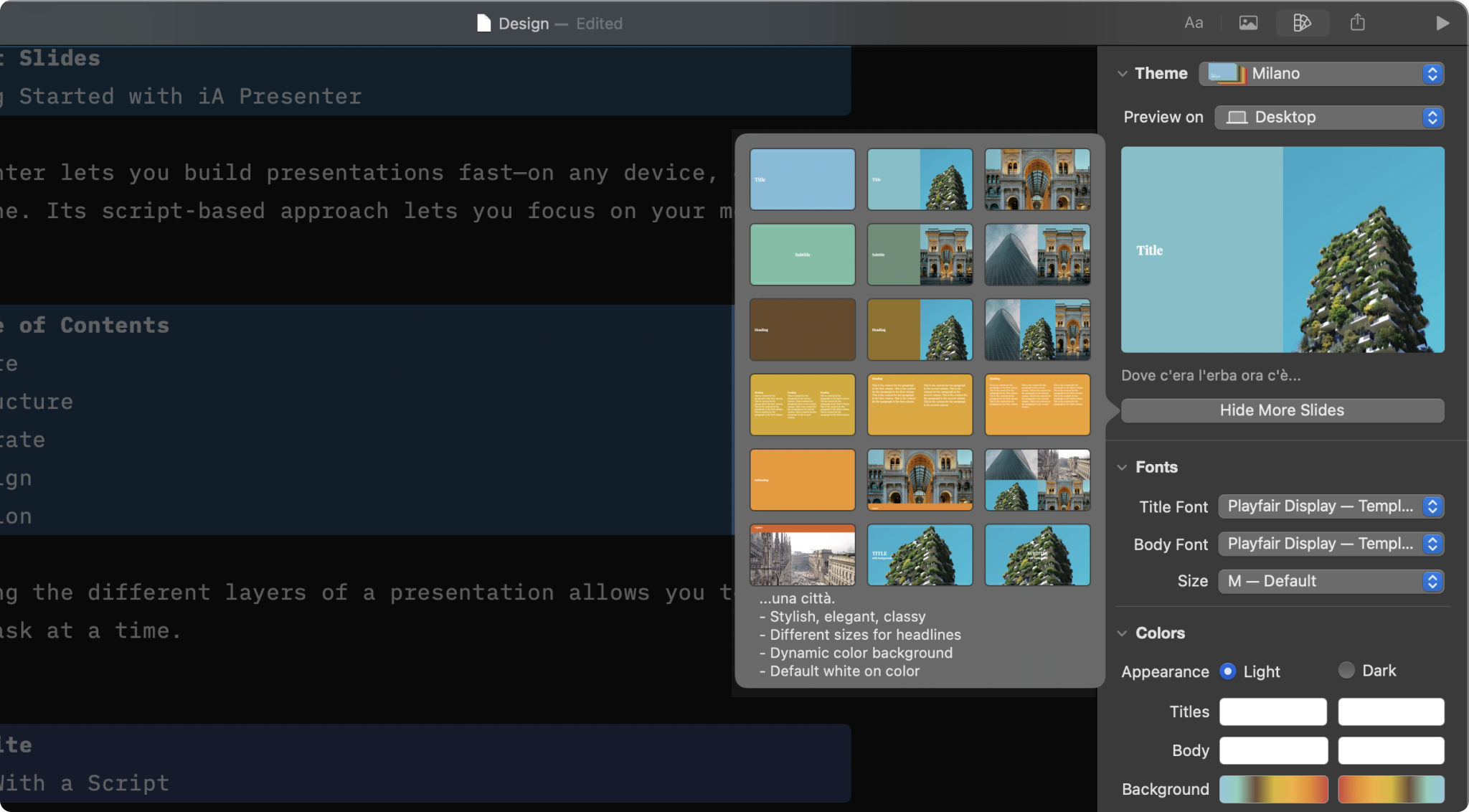
Design
Select a theme and slightly tweak it from the Design Menu

Layouts
Add your text and images, and Presenter picks the right layout for you.
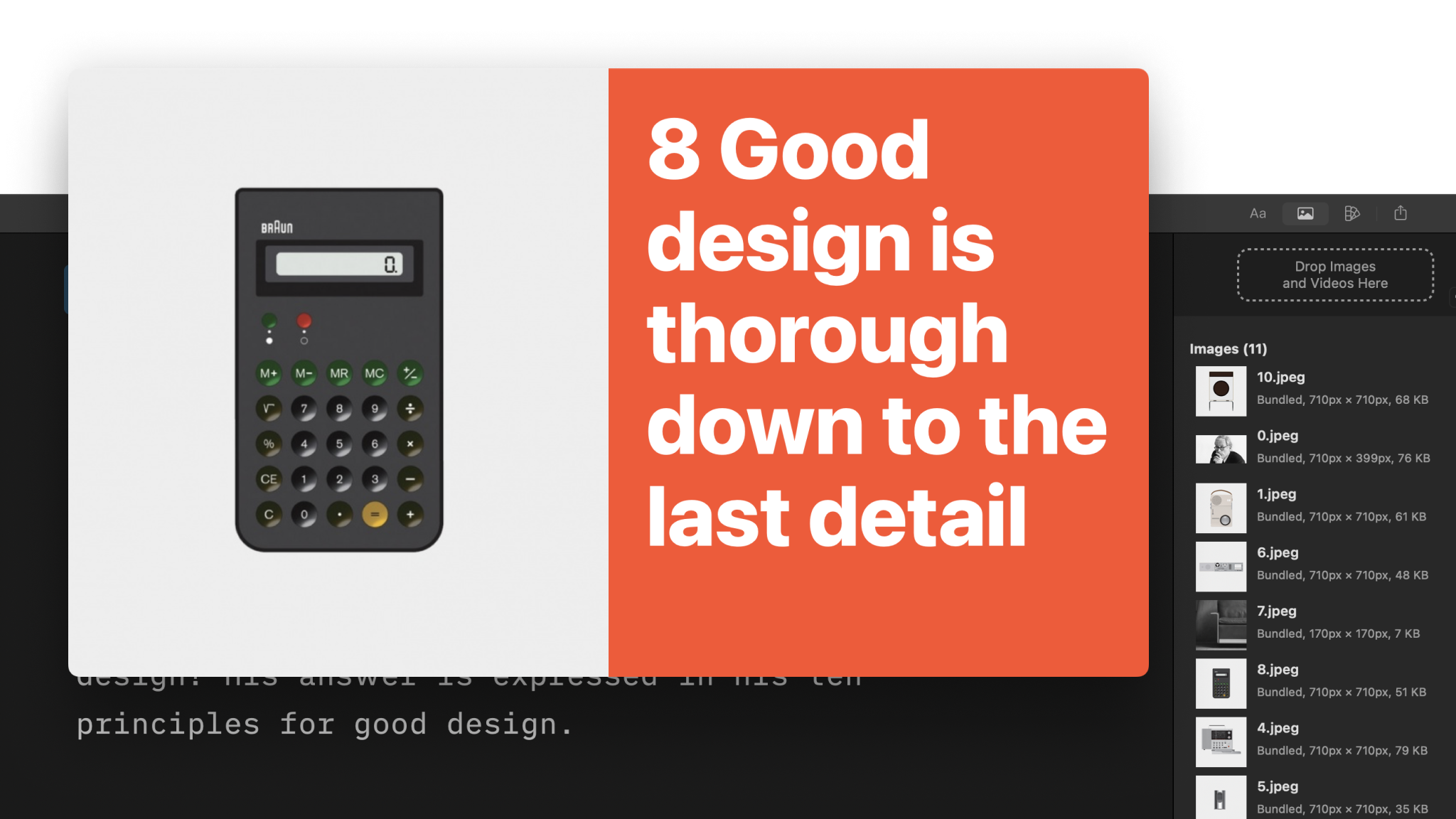
Images
Adding images to your presentations is as simple as a drag and drop.
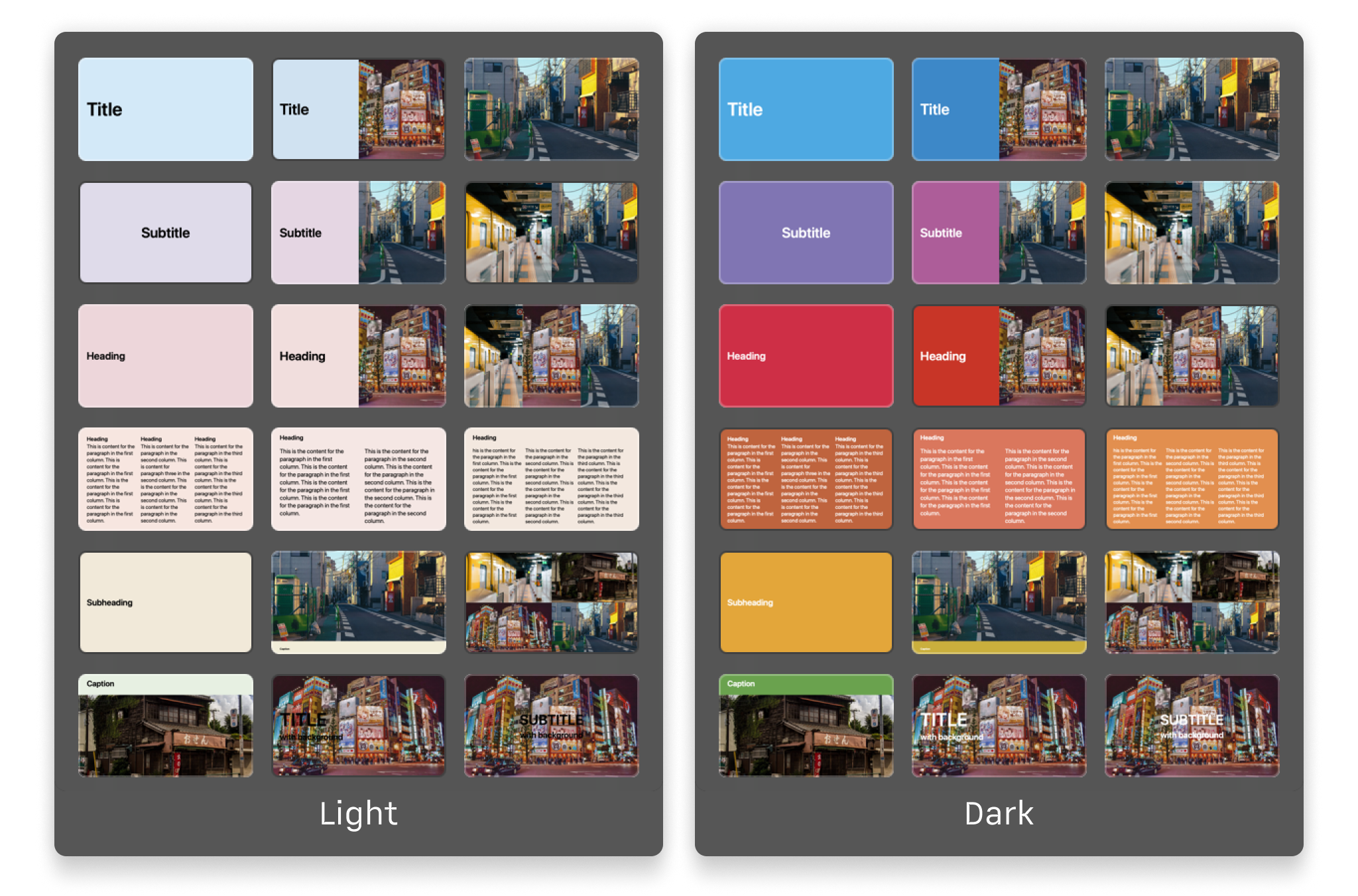
Themes
Explore the variety of themes offered in the app and the design principles that shaped each of them.
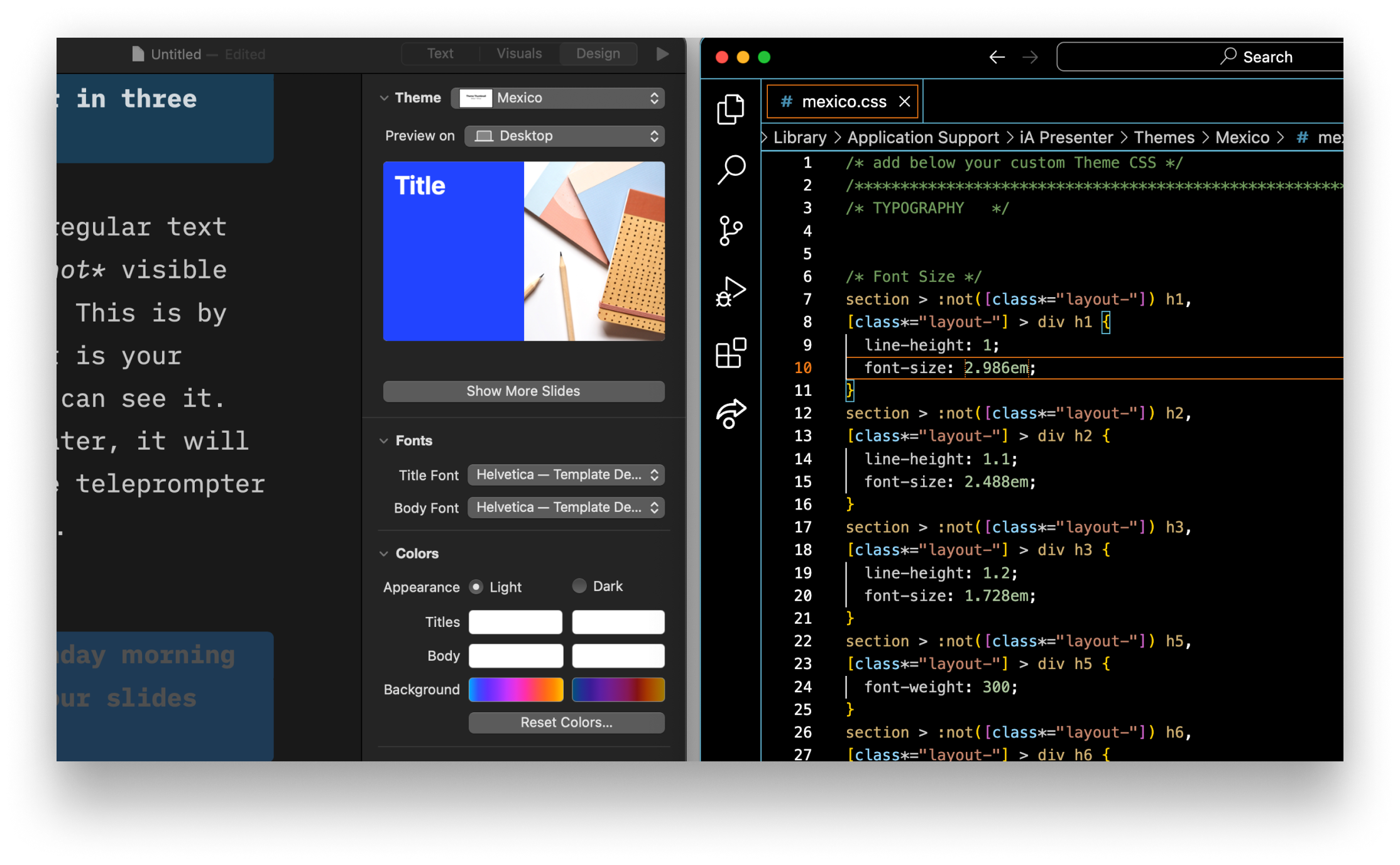
Custom Themes
For those comfortable with coding, built a custom theme from scratch with HTML and CSS.